What are Hotspots?
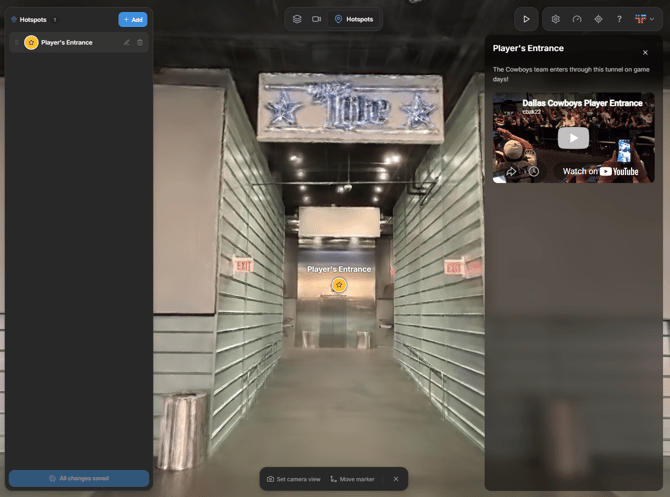
Inserting Hotspots within your Aether can showcase various pieces of media. Whether it's pictures, videos, web links, pdfs, etc. The options are far and wide which can open up a world of possibilities for your tour!
Where do you access them?
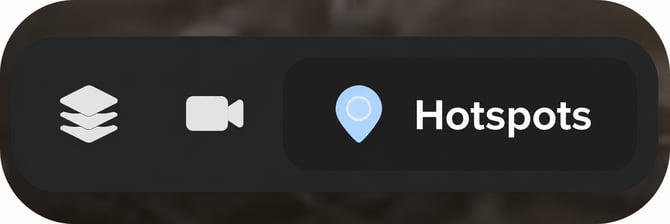
You'll begin by navigating to the top of your screen where you can click on the pinpoint icon, as seen in the photo below. Once you have this selected we can begin.
Implementing
Finding the absolute best location for your Hotspots can be a little stressful (at least for me). You want them to be seen, so make sure you're picking your spots wisely. Once you find the right location for it you'll always be prompted to give it a title and short description.
The best places to insert Hotspots are:
- High Traffic Areas
- Notable Scenery
- Accessibility
- Food, Merchandise, Ticketing
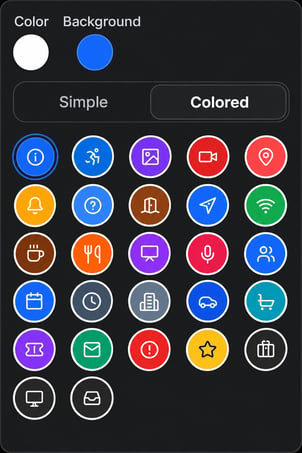
These are just a few examples, you'll then have a wide range of icons to choose from so you can label your Hotspot, they look like this!
Inserting Media
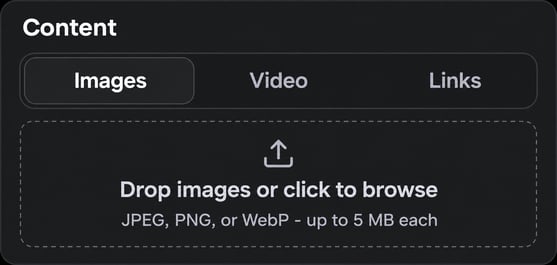
Once you've selected your icon and given it a title and short description you'll have the option of inserting any media of your choice. There are plenty of options here, so feel free to choose anything you think best fits the Hotspot. (You don't have to insert any media if you don't want to.)
The Finished Product
As soon as you're finished your Hotspot should look like this when it's implemented within your Aether. It's all ready for your viewers to see!