
What can you do in Aether Studio?
Aether Studio can be used to:
- Edit and customize your Aether experience
- Create or adjust how viewers move through the space
- Add hotspots and callouts to highlight specific areas
- Add supporting content and calls to action
- Create different versions of the same Aether for different audiences
- Prepare content for your website, social media, sales efforts, proposals, and other marketing implementations
Creating and editing the experience
Aether Studio supports custom camera paths and controls such as field of view, speed, elevation, overhead perspectives, and flythrough-style movement. Threshold 360
Editing the path of your Aether is done with Keyframes these direct the camera in whichever way you want. It allows you to showcase multiple different perspectives of a space even though nothing has fundamentally changed with the space itself.
An example of what a Keyframe looks like can be seen below.
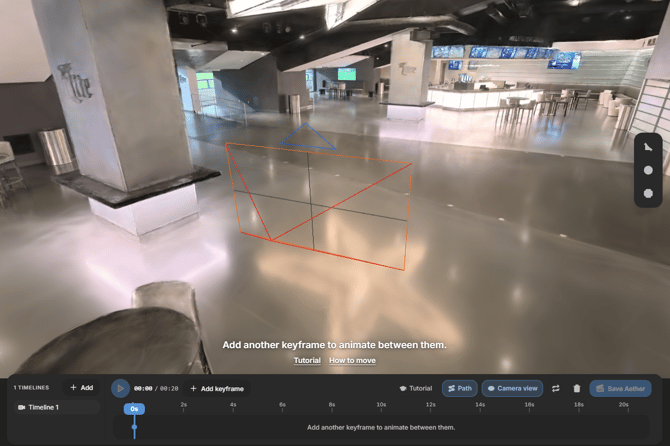
Adding Keyframes
As you add keyframes to your Aether it will slowly build on your timeline that you can see below. If you don't like a certain way a keyframe looks or you added an extra one by accident you're able to select them on the timeline and delete or add more as you please.
You can also access the tutorial button on the timeline as well if you forgot how to do something and need a quick refresher (you could always come back here and visit me though 😎).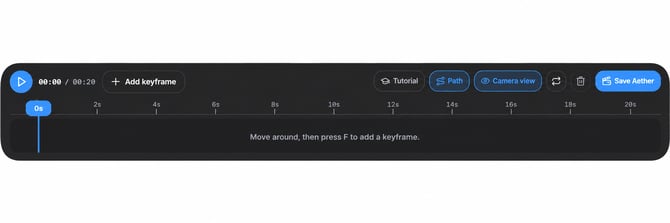
Other Settings
Setting out your path isn't the only way to give your viewers different experiences, movement speed, field of view, and camera speed can all be adjusted to fit your needs. Every Aether you edit and design can have different settings, even down to these very specific changes.
Display quality can also be changed, this is only visible when you are working on the Aether capture to save on resources for your computer. The pictures below showcase what these menus will look like when you open them withthin the editor.
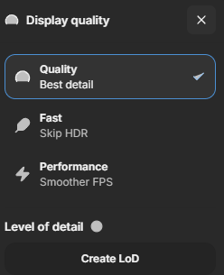
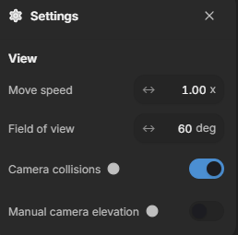
Why create/edit multiple versions?
Depending on the type of location it might be better to have multiple edits, for example:
Hotels: One edit can be used to point out a certain area for vacation guests, where another edit can specifically be used for businesses or events that are planned.
Venues: Create a general tour, an event-sales version, and a version tailored to a particular proposal.
Destinations or attractions: Highlight different amenities or experiences depending on the campaign.
It's our goal for these tools to be as flexible as possible. Making it easier for you to quickly edit, implement, and release these tours as fast for any type of situation. Now we're going to cover Hotspots, you can move on to the next section by clicking here!